Dedicate Windows with toggle-window-dedicated
You’ve carefully arranged your windows just the way you want them - source code
on the left, tests on the right, maybe a shell at the bottom. Then you run some
command that calls display-buffer, and suddenly one of your carefully placed
windows gets hijacked to show a *Help* buffer or a compilation log. We’ve all
been there.
The display-buffer machinery is one of Emacs’s most powerful features, but also
one of its most frustrating. Emacs 30 adds a simple, practical tool to help tame
it: toggle-window-dedicated.
How it works
The concept of “dedicated” windows has existed in Emacs for a long time - a
dedicated window tells display-buffer “don’t touch me, display your buffer
somewhere else.” But setting this up required Elisp:
(set-window-dedicated-p (selected-window) t)
Not exactly something you’d do interactively in the middle of a coding session.
Emacs 30 changes this with a simple keybinding - C-x w d toggles the current
window’s dedicated status.
That’s it. Press it once, and the window is dedicated. Press it again, and it’s back to normal.
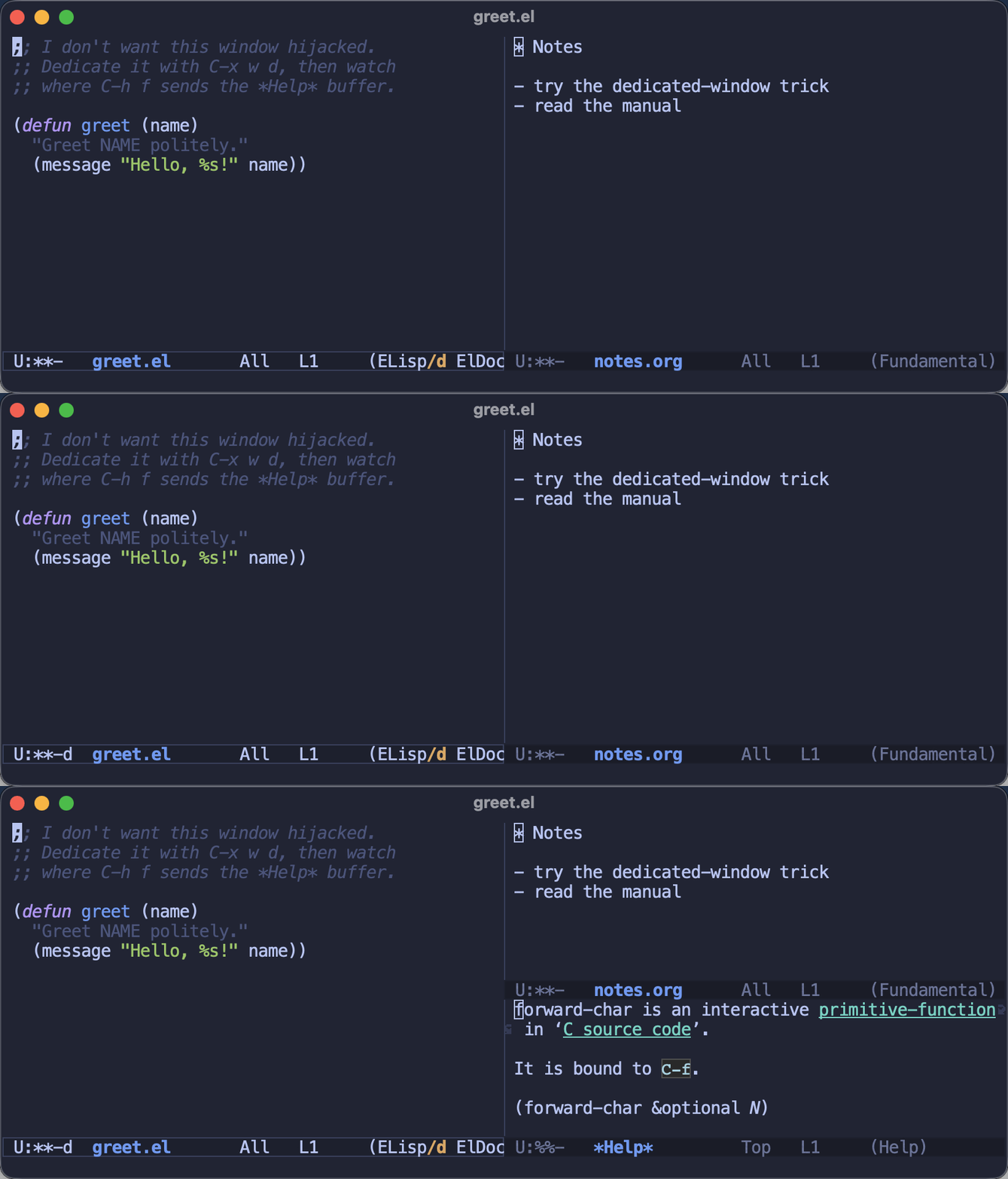
Here’s the whole thing in action. I dedicate the code window on the left (watch
the d appear in its mode line), then ask for help with C-h f - and instead of
hijacking my code window, the *Help* buffer politely opens on the right:
Mode line indicator
When a window is dedicated, you’ll see a small indicator in the mode line:
d- the window is dedicated (soft dedication)D- the window is strongly dedicated
The indicator appears before the buffer name, right after the modification
indicators (the usual --- area).
Practical uses
- Lock your source code windows so that help buffers, grep results, or compilation output land in other windows instead.
- Protect your shell or REPL window from being taken over.
- Stabilize complex window layouts when running commands that spawn new buffers.
A workflow tip
A nice pattern is to set up your window layout, then quickly dedicate the windows you want to protect:
- Arrange your windows
- In each window you want to lock, press
C-x w d - Go about your work -
display-bufferwill respect your dedicated windows
When you’re done and want to return to a more flexible layout, just toggle them off again.
I put off learning the display-buffer machinery for years - it’s famously
fiddly - so having a one-keystroke escape hatch for the most common annoyance is
a real relief. It won’t replace a properly tuned display-buffer-alist, but for
quickly protecting a window in the middle of a session it’s hard to beat.
How do you keep display-buffer from scribbling over your carefully arranged
layout - dedicated windows, a hand-tuned display-buffer-alist, or something
else entirely? I’d love to hear about it in the comments!
That’s all I have for you today. Keep your windows in their place!