Automating Emacs Screenshots
I maintain a bunch of theme ports these days: Zenburn, Solarized, Tokyo Night, and most recently Batppuccin. Every one of them wants screenshots in the README, ideally one per variant, so people can compare the flavors at a glance.
I’d been putting this off forever, because taking the screenshots by hand is such a chore. Load a theme, resize the frame, arrange a nice-looking buffer, take a screenshot, crop it, then repeat for every single flavor. And the results are never quite consistent: the font is a little different, the window is a slightly different size, the crop is off by a few pixels. Multiply that by four flavors across several themes and you can see why I kept finding better things to do.
So recently I finally did what I should have done from the start and taught Emacs to take the screenshots for me. What started as a five-minute hack turned into a surprisingly deep little rabbit hole, so I figured it was worth a write-up.
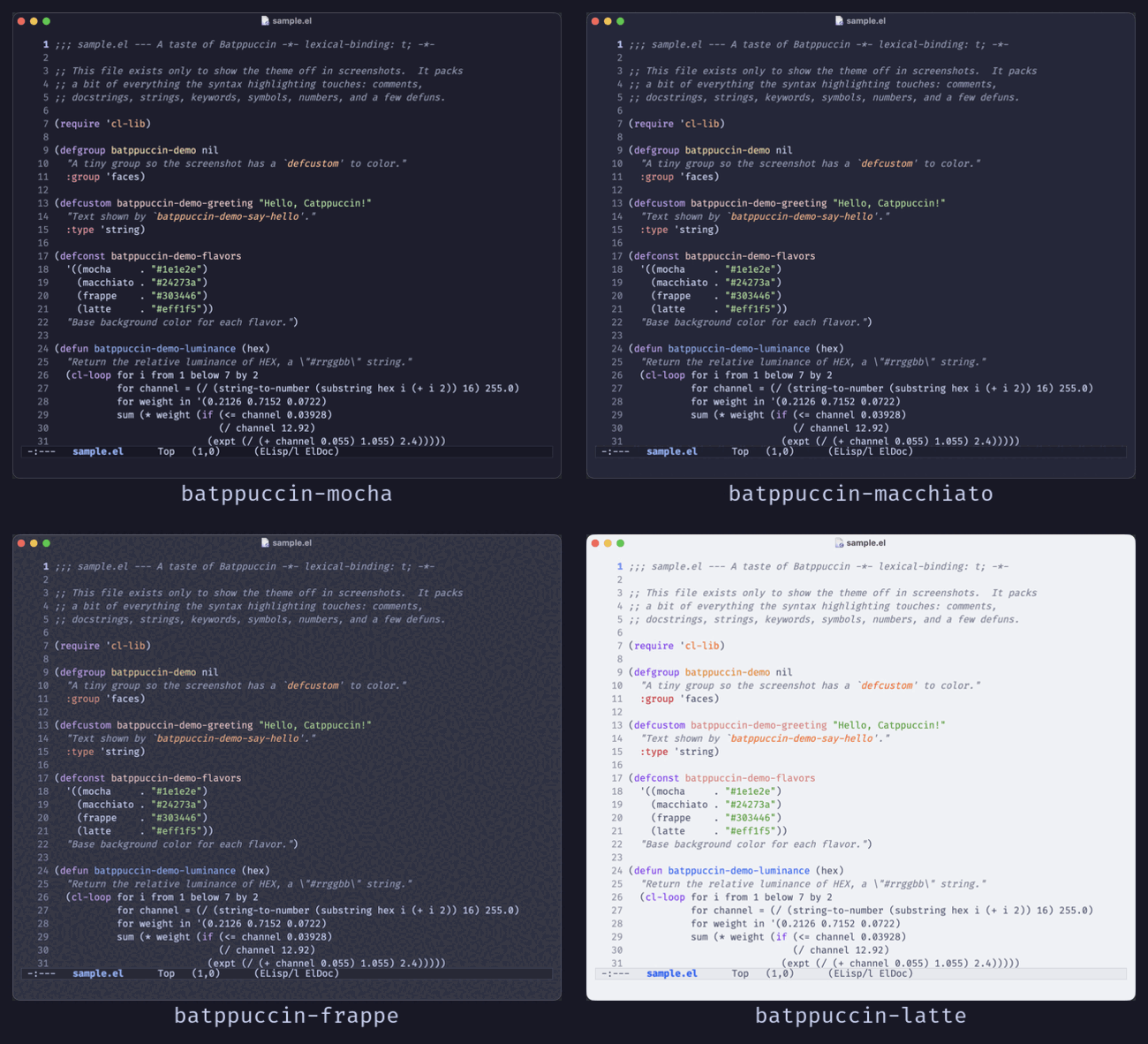
The core idea is simple: spin up a throwaway emacs -Q, load the theme, show a
sample buffer in a frame of a fixed size, and capture just that window. Because
every step is scripted, the screenshots come out identical in layout, and
regenerating the whole set after a color tweak is a single command.
A clean, disposable frame
The first half of the job is pure Emacs Lisp. I want a frame with no distractions (no tool bar, menu bar, or scroll bars), a nice font, a fixed size, and of course the theme loaded:
(setq inhibit-startup-screen t)
(menu-bar-mode -1)
(tool-bar-mode -1)
(scroll-bar-mode -1)
(setq-default cursor-type nil)          ; hide the cursor for a clean shot
(set-face-attribute 'default nil :family "Fira Code" :height 150)

(add-to-list 'custom-theme-load-path "/path/to/theme")
(load-theme 'batppuccin-mocha t)

(set-frame-size (selected-frame) 92 36)
(find-file "sample.el")
I load all of this into a throwaway Emacs:
emacs -Q --eval '(load "setup.el")'
A couple of things bit me here that are worth calling out:
emacs -L some/dirputs a directory on theload-path, butload-themesearchescustom-theme-load-path. Those are two different lists, so remember to add the theme’s directory to the latter.- If your sample file lives in a project with a
.dir-locals.el, opening it can pop up an “unsafe local variables” prompt that blocks the whole script. Settingenable-local-variablesandenable-dir-local-variablestonilsidesteps that.
I use an Emacs Lisp file as the sample, by the way. It highlights nicely and, being the mother tongue, needs no third-party major mode, which keeps the whole setup dependency-free.
Now there’s a pretty Emacs frame on screen. The other half of the problem is turning it into a PNG.
Option 1: let Emacs export itself
The cleanest approach doesn’t involve a screenshot at all. If your Emacs is built
with Cairo (as the GTK build on Linux typically is), it has a wonderful function
called x-export-frames that renders a frame straight to an image:
(with-temp-file "shot.svg"
  (insert (x-export-frames nil 'svg)))
It can emit svg, pdf, postscript, or png. No external tools, no
window-manager wrangling, no “don’t touch the mouse while it runs”. Emacs simply
hands you the picture. If you’re on a Cairo build, stop reading and use this.
Alas, I’m on macOS, where Emacs uses the NS toolkit and x-export-frames isn’t
available (you get a friendly void-function). So I had to go the screenshot
route.
Option 2: screenshot the window
macOS ships with screencapture, which can grab a rectangular region of the
screen. The trick is knowing exactly where the Emacs frame is. Conveniently,
Emacs knows: frame-edges reports the outer pixel coordinates of the frame:
(let ((e (frame-edges nil 'outer-edges)))
  (with-temp-file "/tmp/geom"
    (insert (format "%d %d %d %d" (nth 0 e) (nth 1 e) (nth 2 e) (nth 3 e)))))
The shell side reads those coordinates and captures the rectangle:
read L T R B < /tmp/geom
screencapture -x -R "$L,$T,$((R - L)),$((B - T))" out.png
And that’s basically it. Except it isn’t.
The part nobody warns you about
Here’s the catch with region capture: screencapture -R grabs whatever happens
to be on screen at those coordinates. If any other window is sitting on top of
the Emacs frame, you’ll cheerfully capture that instead. And since I like to
keep working while the script churns through a dozen flavors, this happened all
the time. I’d end up with a screenshot of my terminal, my browser, or my other
Emacs.
I ended up stacking a few tricks. First I float the frame above everything else
with the z-group frame parameter, (set-frame-parameter nil 'z-group 'above).
Then, since an Emacs launched from a background shell isn’t the active
application and starts out buried behind the other windows, I pull it forward
with (ns-hide-emacs 'activate).
Neither of those is bulletproof on its own, so the real safety net is checking
the result. After each capture I sample a pixel from a corner that should be the
theme’s background and compare it to the color Emacs reports for the default
face. If they don’t match, I know I grabbed the wrong window, so I wait a moment
and try again. That one check is what makes the whole thing safe to run while I
keep working. Asking ImageMagick for a single pixel is enough:
magick out.png -crop '1x1+24+420' +repage -format '%[pixel:p{0,0}]' info:
Capturing a specific window by its ID would sidestep the stacking problem entirely, but on recent macOS enumerating window IDs requires Screen Recording permission for whatever process asks, and I couldn’t get that from a plain script. Floating the frame and verifying the result turned out to be simpler and more reliable.
A few finishing touches
A couple of smaller tweaks made the output look properly polished. GUI Emacs on
macOS colors the native title bar according to the frame’s ns-appearance
parameter, so I set it to light for light themes and dark for dark ones, and
add ns-transparent-titlebar so the bar blends into the buffer background. It’s
a tiny detail, but it makes the whole window feel like one piece. (It’s also the
same trick that fixes an unreadable title bar under light themes, but that’s a
story for another day.)
The other tweak was really a bugfix. Every so often a shot came out with a stray
glyph or two at the top of the buffer, some redisplay artifact I never bothered
to fully diagnose. Forcing a (redraw-display) right before I read out the frame
geometry made it go away.
Other roads not taken
If you want to run this on a server or in CI, the story gets even better on
Linux. You can start a virtual X display with Xvfb, run the Cairo Emacs build
against it, and use x-export-frames: fully headless, perfectly reproducible,
and with none of the “is the right window on top?” nonsense. That’s the setup I’d
reach for if I ever wanted to generate these in a GitHub Action.
There are also plenty of other capture tools depending on your platform:
ImageMagick’s import and the venerable scrot on X11, grim on Wayland,
gnome-screenshot, and so on. Most of them can target a specific window, which
is handy. One thing that won’t work is emacs --batch: batch mode has no GUI
frame, so there’s nothing to photograph. You genuinely need a real, on-screen
frame (or Cairo’s off-screen rendering).
Where this is headed
For now this lives as a small tools/ script inside my Batppuccin repo: a
sample.el to display, an Emacs Lisp file to set up the frame, and a shell
script to drive the capture and verification. It has already saved me a ton of
tedium. Regenerating four flavors’ worth of screenshots is one command, and they
come out identical every time.
But all of my theme ports have the same need, and the logic is almost entirely theme-agnostic. So I suspect I’ll eventually pull it out into a little standalone project: point it at a theme directory, hand it a sample file, and let it produce a consistent gallery for any theme. If that sounds useful to you as well, let me know. It might just nudge me into actually doing it.
Until then, I hope some of these ideas save you a bit of manual cropping. Automating the boring parts is what Emacs is all about.